In the past two weeks, I have discovered a lot about Virtualbox. I wanted an easy alternative to vmware server/player and I had heard at a friend's party that virtualbox was another virtualization software in the market and it was free. Vmware workstation needs a paid license, so I decided to create a working virtual machine in which internet would work.
A difficult virtualbox journey.. from vmware
Intially, I dabbled with all sorts of network setups, but nothing seemed to work.
In the starting, I used static IPs -- 192.168.203.21 for eth0 and 10.10.10.21 for eth1, mostly because I had seen these IPs being used for NAT and Host only network types in Vmware. (later on, I realized that the network functionalities of Vmware and virtualbox are not the same. So host only in vmware may not be the same as host only in virtualbox).
This very setting was working for the SLES9 OS install done in Vmware, with the same setting in virtualbox, the network would not work.
The route command was taking a long time to print the output.
The "route -n" command was coming out with output instantly though, which clearly pointed that the issue was with the name resolution or accessing the names server.
Trivia...
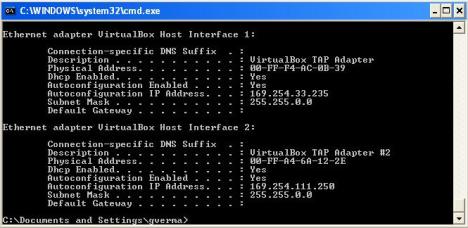
During my efforts to make NAT networking work, on checking the c:\> ipconfig /all output in windows, I could see that the status of
Virtualbox TAP adapter (first network interface) was showing as
"media disconnected".I started reading different posts on the internet frantically and came across one very cryptic post at
http://eligere.wordpress.com/2008/03/12/virtualbox-windows-tap-disconnected-message-remove/ , which had an interesting hack to make the status of Virtualbox TAP adapter as always connected or with 0.0.0.0 IP when the VM was not started.
The solution was to open up the Device manager in windows, right click on the Virtualbox TAP adapter, go to advanced tab, and select "Always connected" value for the Media Status option.

After this, the media state always shows as connected with a DHCP IP assigned to it in the subnet 169.254.xx.xx. If you read
http://en.wikipedia.org/wiki/Zeroconf, you will come to know that
169.254.0.0 - 169.254.255.255 is a special range reserved for link-local set of addresses.
After making this change, the networking in the SLES9 guest OS STILL DID NOT work!!
Random ramblings...
While searching on the virtualbox forums, I found a lot of posts talking of making Ubuntu work with Virtualbox.
Well, I thought. At least ubuntu seems to work, if not SuSE. So, I decided to virtualbox with Ubuntu guest OS on a windows vista at home.
I discovered that Ubuntu created a DHCP network interface for the first virtualbox TAP adapter, with an IP of 10.0.2.3, and networking was working just fine out of the box!
Trying DHCP for eth0 on SuSE linux..
This lead me on to think that Virtualbox seemed to have a liking for DHCP networking interfaces, rather than static IPs.
Using the "yast2" utility in the previous SLES9 virtual machine, I changed the eth0 network interface setting to DHCP and found that the ifconfig output had assigned an IP of 10.0.2.15 to eth0.
What's more, the route command was not hanging anymore!
Somehow, a default gateway of 10.0.2.2 was being taken up by the OS. (although /etc/resolv.conf had an entry of 192.168.203.2 for the nameserver. Now, that was strange.)
But, internet was not working yet.
Making internet work on SLES9 VM using virtualbox (in office intranet)....
To make networking work on SLES9 virtual machine, I still had do the following things:
1) Copied the DNS servers from the windows host into /etc/resolv.conf . This could have been done through the yast2 utility too.
If I did not do this, then the route command was printing the expected output, but the nslookup for external websites like yahoo.com was failing or hanging.
2) Changed default gateway as 10.0.2.2 through yast2 utility
3) Since I was behind in the office network, I had to setup the corporate proxy too through Yast2. It should be visible in the http_proxy environment variable in the SLES9 guest OS. This was crucial to make networking work. If this was not set, the ARP name resolution was happening, but the connection was hanging.
A really easy way to check the networking connection was to use $ wget yahoo.com, which would tell the entire story very well.
4) Another thing You COULD consider doing (but MAY NOT be necessary) could be syncing up (typing in the same MAC id) the MAC address of the Windows TAP Adapater in the Network setting of the Virtual machine definition in Virtualbox (before the VM starts). This may be relevant if you generated a new MAC id of the virtual network interface or you recreated a new virtualbox network interface.
You may also have to change the new MAC id in name of the file /etc/sysconfig/network/ifcfg-eth-id-<MAC:ID> , which controls the internal names of the network interface.
I started going on this path and did this consistency naming for the first network interface, but did not bother doing so for the other one, and even then networking was working just fine.
Experimenting with 2 NAT type Virtualbox TAP adapters
Then I tried configuring the guest OS VM with 2 NATs and this is how the ifconfig output came up like:

The route command came up like:

I was able to browse external websites ....
An important learning about how NAT works in Virtualbox..
Summing it up, I made an important discovery (for me) about how NAT works in virtualbox.
In reality, the NAT setup was really, really easy and worked for most people. To make it work, all that was needed to be done was let the Guest OS get an IP in the subnet 10.0.2.x through DHCP, have a default gateway of 10.0.2.2 and a names server of 10.0.2.3. With this, everything was hunky dory.
Had I chosen multiple NAT type Virtualbox TAP adapters for the Virtual machine (you can choose upto 4), the third and fourth ones would have acquired IPs in the subnet 10.0.3.x and 10.0.4.x. This is assuming eth2 and eth3 would have been of type DHCP.
Extending this concept to Static IPs..
When I discussed this finding with Srikanth, the sysadmi of my wife's company, he said that since DHCP server is giving an IP in the subnet range 10.0.2.x, one should be able to setup any static IP value for that network interface in the same range!
The more I thought about it, the more it seemed to make sense. And then, try it out I did. And work it did. (Yes, sir). I put eth0 as static ip of 10.0.2.5, default gateway 10.0.2.2, names server 10.0.2.3 and networking worked fine.
So basically, each NAT interface allows you to choose any IP in the range 10.0.N.x, where N >=2 and x ranges from 4 and 255 (leaving off 10.0.N.[1-3] for special functions of default gateway/names server).
Redemption..
Having experimented and dealt in depth with the NAT network interface of virtualbox, I was happy to have learnt something of value in the networking arena, which was an area of improvement for me.
What's more, I learnt that its easier to make networking work in Virtualbox than it is in VMware, provided you let the OS choose the IP in its desired magical subnet -- 10.0.N.x.


